Blog
Automate Dual Transaction Matching (and Save Your Dispatchers Hours Every Day)
Automate Dual Transaction Matching (and Save Your Dispatchers Hours Every Day)
Automate Dual Transaction Matching (and Save Your Dispatchers Hours Every Day)
In this Article:
Something Cool
Get drayage insights to your inbox every month
Dual transactions should be the easy win.
Your driver is already at the terminal. They're picking up a full container. And you have an empty sitting at a warehouse that needs to go back to that same terminal.
Same miles. Same gas. Same driver hours.
And literally everyone loves a good dual transaction.
Carriers want them because you're getting paid for two moves with the same driver time and fuel cost.
Terminals want them because checking in a driver takes the same amount of time whether they're doing a single or a dual — so they're processing twice as many containers in the same timeframe.
Customers want them because their freight moves faster.
But most dual transaction opportunities slip through the cracks.
Because dispatchers are manually matching these loads one-by-one — scrolling through spreadsheets, checking terminal restrictions, calling to book appointments, and hoping everything lines up.
That’s why we automated the entire process.
With PortPro's new Dual Transaction features, you can automate the matching and booking process. Let your dispatchers focus on managing drivers and handling the fires that actually need their attention — not playing Tetris with empty returns.
Here’s a quick video to show you how you this works in the system:
If you prefer reading to videos, keep scrolling 👇
PortPro gives you two workflows for managing dual transactions, depending on whether you're working reactively or proactively:
Option 1: Individual Matching — For one-off urgent situations where you need to quickly match a specific dual
Option 2: Recommended Duals — For proactive shift planning where you want to match an entire terminal's worth of duals at once
Let's walk through both.
Sometimes you just need to get one dual booked right now. Maybe a customer called with an urgent pickup, or a driver's schedule just changed, and you need to quickly find them a matching empty return.
The Individual Matching workflow is perfect for these situations.
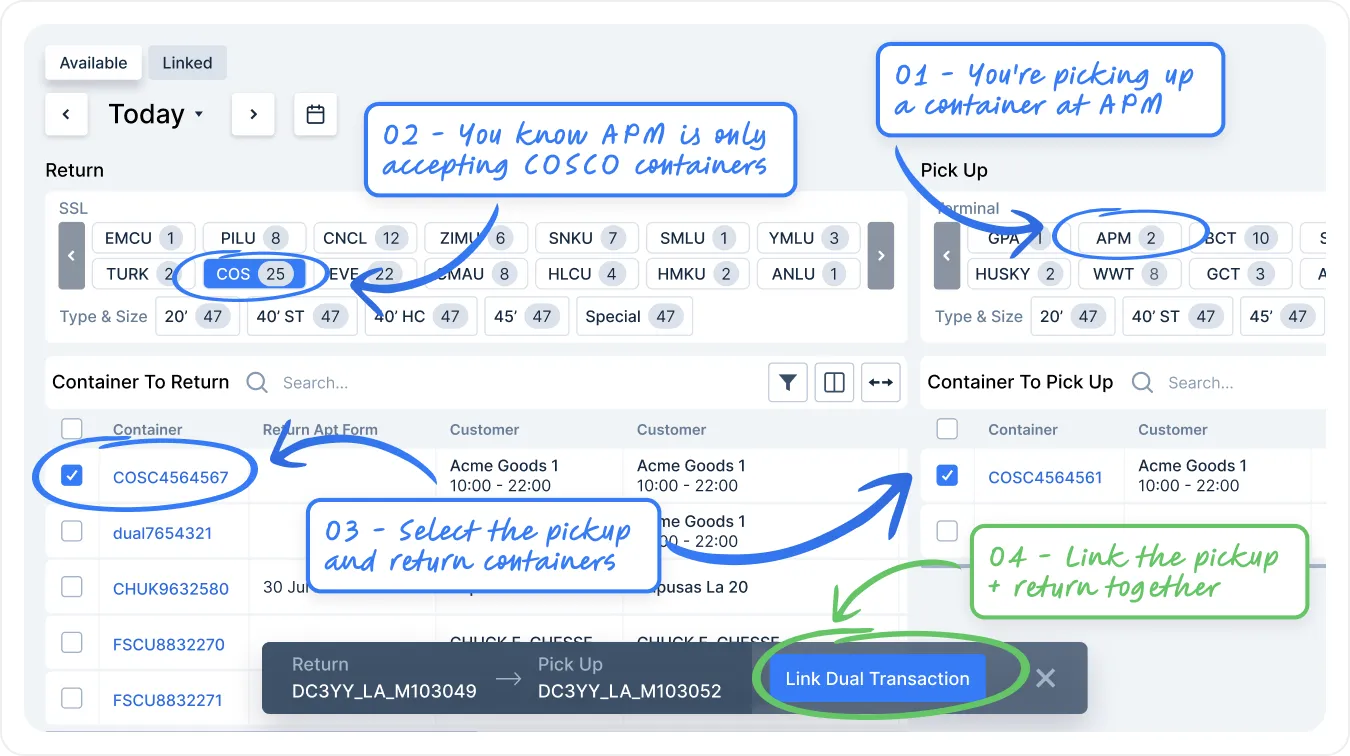
When you navigate to the Dual Transactions page, you'll see a split view:
Left side: Loads available to be returned (your empties)
Right side: Loads available to be picked up (your outgates)
At the top, you have filters to help you narrow down your options:
For pickups: Filter by terminal or pickup location (since the pickup location can't change)
For returns: Filter by steamship line (since containers can be returned to multiple locations)
Here's why the steamship line filter is so useful: Let's say you're looking at APM terminal. You know that for this shift they're accepting all Cosco containers but not CMA or Evergreen. You can filter to just see your Cosco empties — regardless of what their current return location is set to — because you know you can change it.
Select the pickup container you want to match
Select the return container you want to match with it
Click "Link Dual Transaction"
Now you'll see your options:
Link in PortPro only — This links them for the driver on the mobile app but doesn't involve any terminal automation
Request a dual transaction appointment — This links them in PortPro AND sends an auto-request to the terminal to book the dual
Use existing appointment
— If one of the loads already has an appointment booked, you can use that existing time for the dual
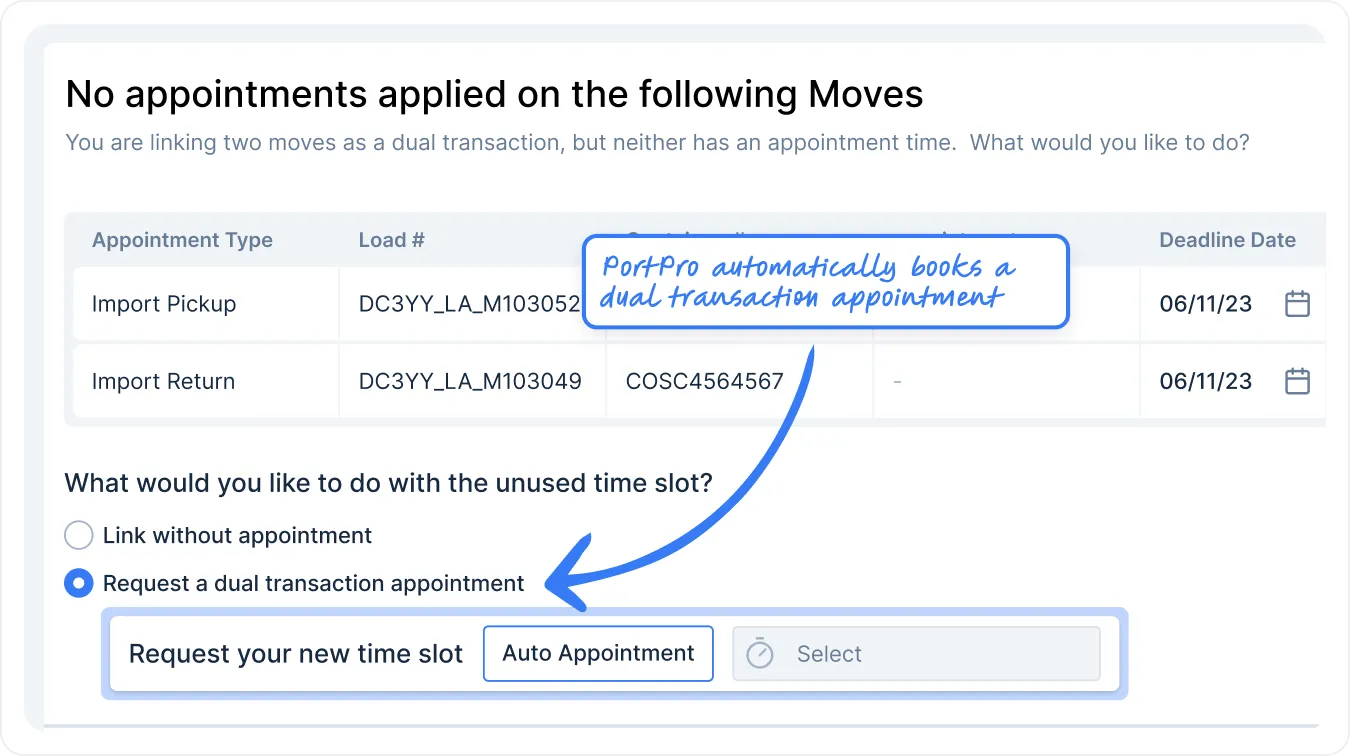
Once you click confirm, PortPro will:
Link the two loads together
Send the request to the terminal
Show you the status with a double arrow icon on your dispatcher page
You can track all linked duals and see their booking status from the Linked Duals page, or from the Appointments page where there's now a dedicated Dual Transactions tab.
Here's where things get really powerful.
Instead of matching duals one-by-one throughout the day, you can now plan an entire shift's worth of duals in just a few clicks.
This is the workflow your dispatchers will use most often — planning ahead for the next shift, terminal by terminal.
Let's say it's Thursday afternoon, and you're planning your Friday morning shift.
Navigate to Recommended Duals
Select your parameters:
Terminal (e.g., APM)
Date (e.g., November 21)
Shift (e.g., First Shift)
Container size (e.g., 40-foot)
Click Apply
PortPro will now do something smart: it checks the empty return restrictions for that specific terminal and shift.
So you'll see something like: "APM is accepting Maersk, HAPAG, Evergreen, and Cosco — all container types."
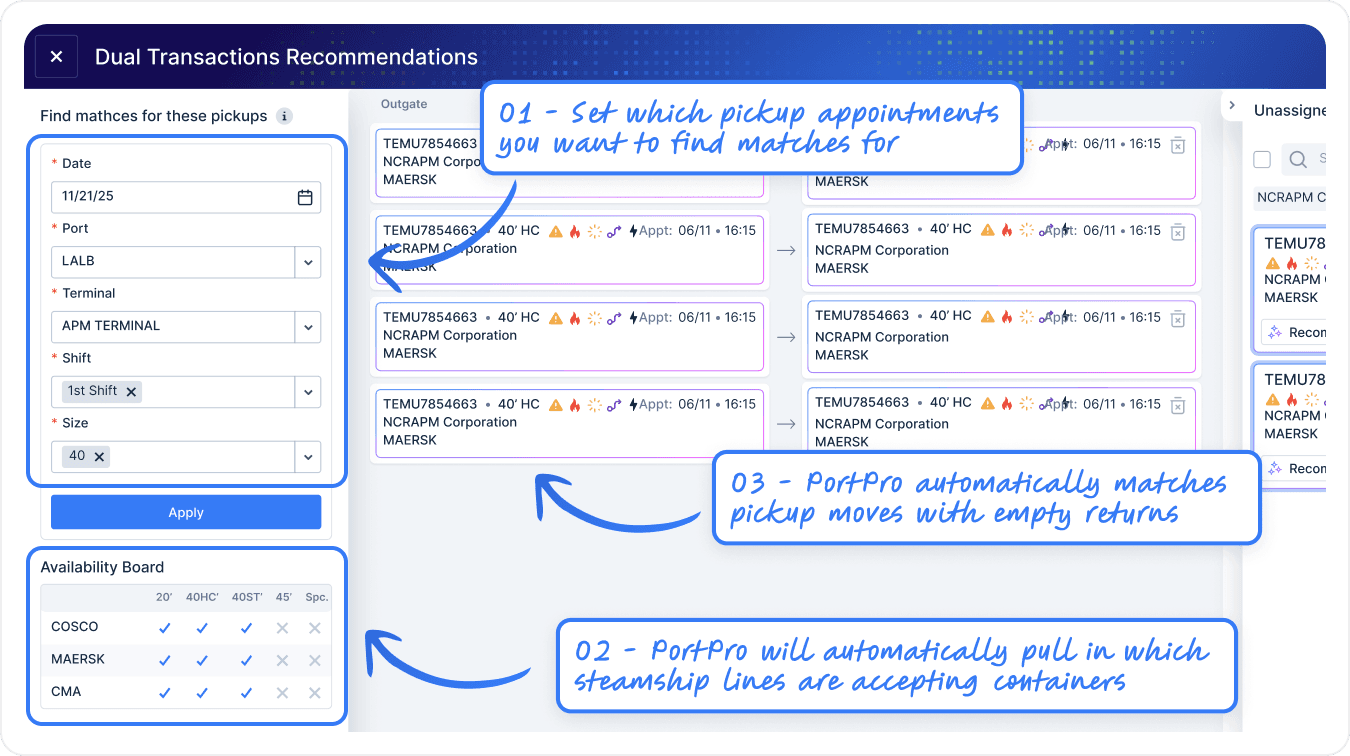
The screen will show you all the potential dual transaction matches:
Outgates that already have pickup appointments for 11/21 First Shift at APM
Empty containers that match the terminal's acceptance requirements and are the right size
The empties don't need to already have APM set as their return Maersk, HAPAG, Evergreen, or Cosco container that's the right size.
Drag and drop to swap which empty matches with which outgate
Use overflow containers if you want to substitute different empties
Remove containers from the match if you don't want them to be a dual
PortPro will automatically:
Update the return location for all empties to APM (to match the outgate)
Assign drivers (if the outgate has a driver assigned, the empty return will get the same driver)
Link all the duals
Send requests to the terminal for each dual transaction
All at once. For an entire shift.
Instead of doing this one-by-one throughout the day, your dispatcher can knock out an entire terminal's duals in 2 minutes.
Then they move on to the next terminal. Then the next container size. And in 15-20 minutes, they've planned an entire shift's worth of dual transactions.
Here's how most of our customers are using these two workflows together:
Morning/afternoon before the shift: Use Recommended Duals to plan out the next shift, terminal by terminal. This is your proactive bulk workflow.
During the shift: Use Individual Matching for one-off situations — a last-minute customer request, a driver schedule change, or an urgent pickup that just came in.
This combination gives you the efficiency of bulk planning with the flexibility to handle urgent situations as they come up.
When using Recommended Duals, the most efficient approach is:
Pick a terminal (e.g., APM)
Do all 40-foot containers
Do all 20-foot containers
Move to the next terminal
This keeps your workflow focused and prevents you from jumping around between terminals and losing track of what you've already matched.
This feature is perfect for:
Carriers already using PortPro Appointments who want to add dual transaction automation to their existing workflow
Carriers manually matching duals today who want to save their dispatchers hours of tedious work every day
Carriers who want to increase their dual transaction percentage by making it easier to identify and book matches
If you're already using PortPro Appointments, you'll automatically get access to these features. No setup required — just navigate to the Dual Transactions page and start matching.
If you're not using PortPro Appointments yet and want to get in on this, fill out the form on this page to book a time with your PortPro rep.